iPhone, iPad, or iPod touch
When you add your Exchange ActiveSync account, you can sync your Mail, Contacts, Calendars, Reminders, and Notes wirelessly with your iOS device.
1. Add your Exchange account
Tap Settings > Accounts and Passwords > Add Account > Exchange.

2 . Enter your address
READ THIS FIRST
You do not need to worry about your email address changing. You can receive mail at either domain, m1support.services or m1services.com, but in order to setup your email you need to use your network username followed by @m1services.com (the same network username that use to login to vpn). It should be your firstname.lastname@m1services.com (unless you are an older employee or your name has changed).
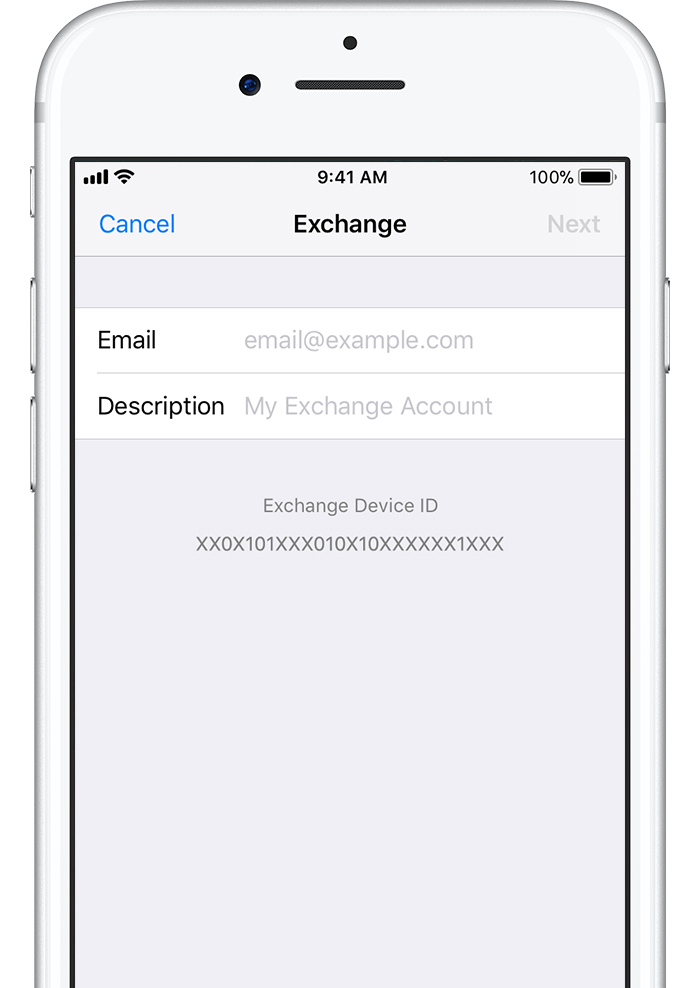
Enter your email address. You can also enter an account description.
3 . Connect to the Exchange Server
After you enter your email address, choose Sign In to connect to the M1 Exchange Server.
If you select Configure Manually, you can set up an Exchange account with Basic authentication. Enter your email password. You might also be prompted to enter additional server information.


4. Sync your content
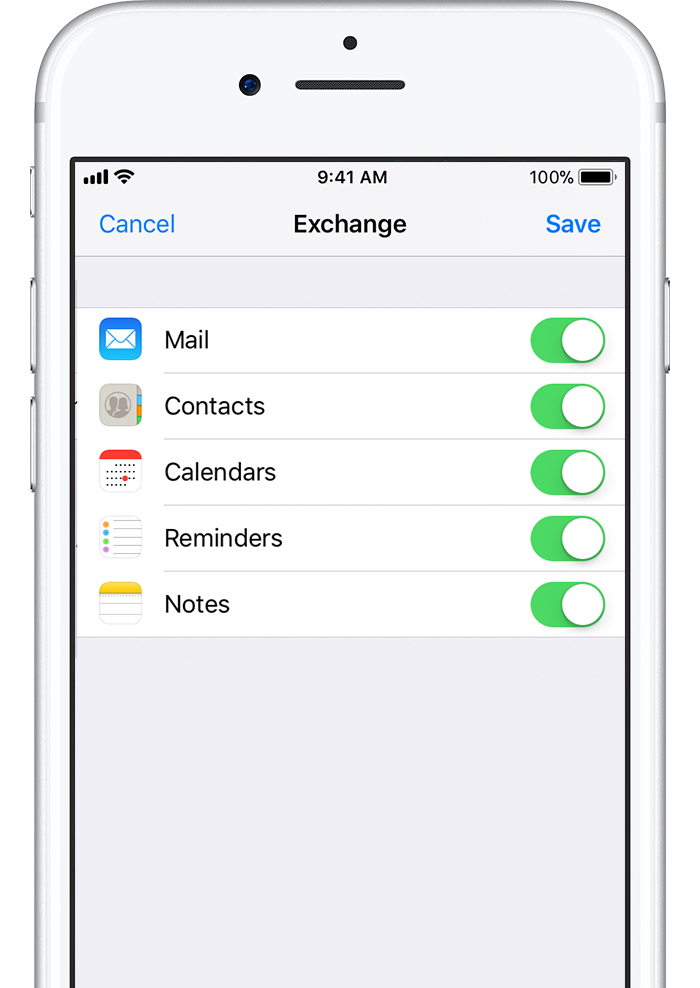
You can sync Mail, Contacts, Calendars, Reminders, and Notes. When you're finished, tap Save.
5. Edit your Exchange settings
Tap Settings > Accounts and Passwords, and select your Exchange account. You can also set up automatic out-of-office replies, and change how often you want Mail to sync. You can also tap your account name to change Advanced Settings like SSL and S/MIME.