Custom View - Sender's email address
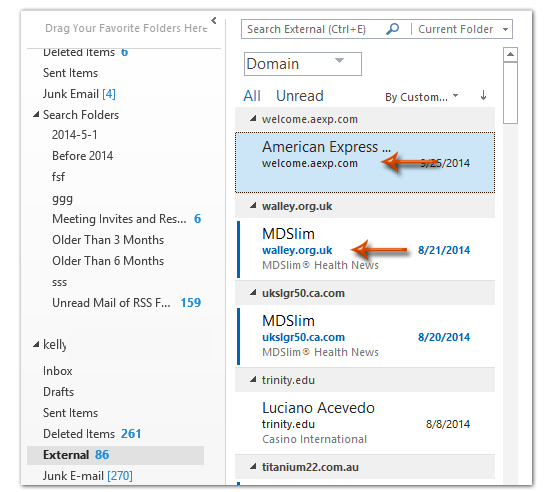
You may want to be able to view a sender's email address in your preview mode. This helps you find phishing attempts more easily where an email might have a familiar person's name but have an external email address. In order to view a sender's email address in the message preview window you must customize your Inbox view with a custom formula.
1. Make sure you have your inbox selected.
2. Click the "Add Columns" button under the "View" Tab at the top
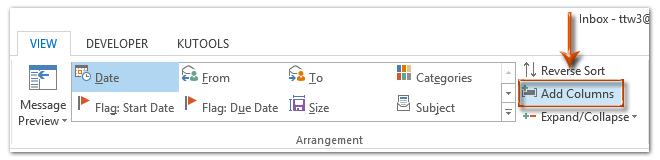
3. Click the "New Column" button
4. Enter a name for the field. Ex: Senders Domain and select "Formula" for the Type. Then click "Edit..."
5. Paste this formula into the formula box and click ok:
IIf(InStr(1,[SearchFromEmail],"@"),[SearchFromEmail],"Internal")
6. The custom column should now appear on the right site. Make sure it is selected and click "Move Up" until it is just below the "From" column
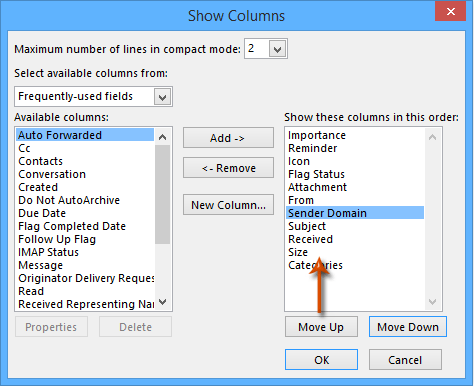
7. You may optionally change the "Maximum number of lines in compact mode" to 3 to make sure you can still view your subject line in the preview.
8. You should now see the senders email address under their name in your preview mode. If the email was sent internally from an M1 email address it will say "internal".
Note: Some emails will show m1 email addresses instead of saying Internal. Do not be alarmed. This is because the sender was actually outside of the m1 domain but is being masked as m1services. Some of our legitimate emails look like this such as our emails sent from helpdesk or mailchimp. However, sometimes people outside of M1 may try to make it look like their emails are from m1. If you ever see an email that looks like it was sent from m1 but does not say "Internal" on the email address line, please make sure you check the email carefully to ensure it looks legitimate.